
Forgot your password?
Or just updating it for security reasons?
Changing your email password in cPanel takes less than 3 minutes.
Let’s go through the steps
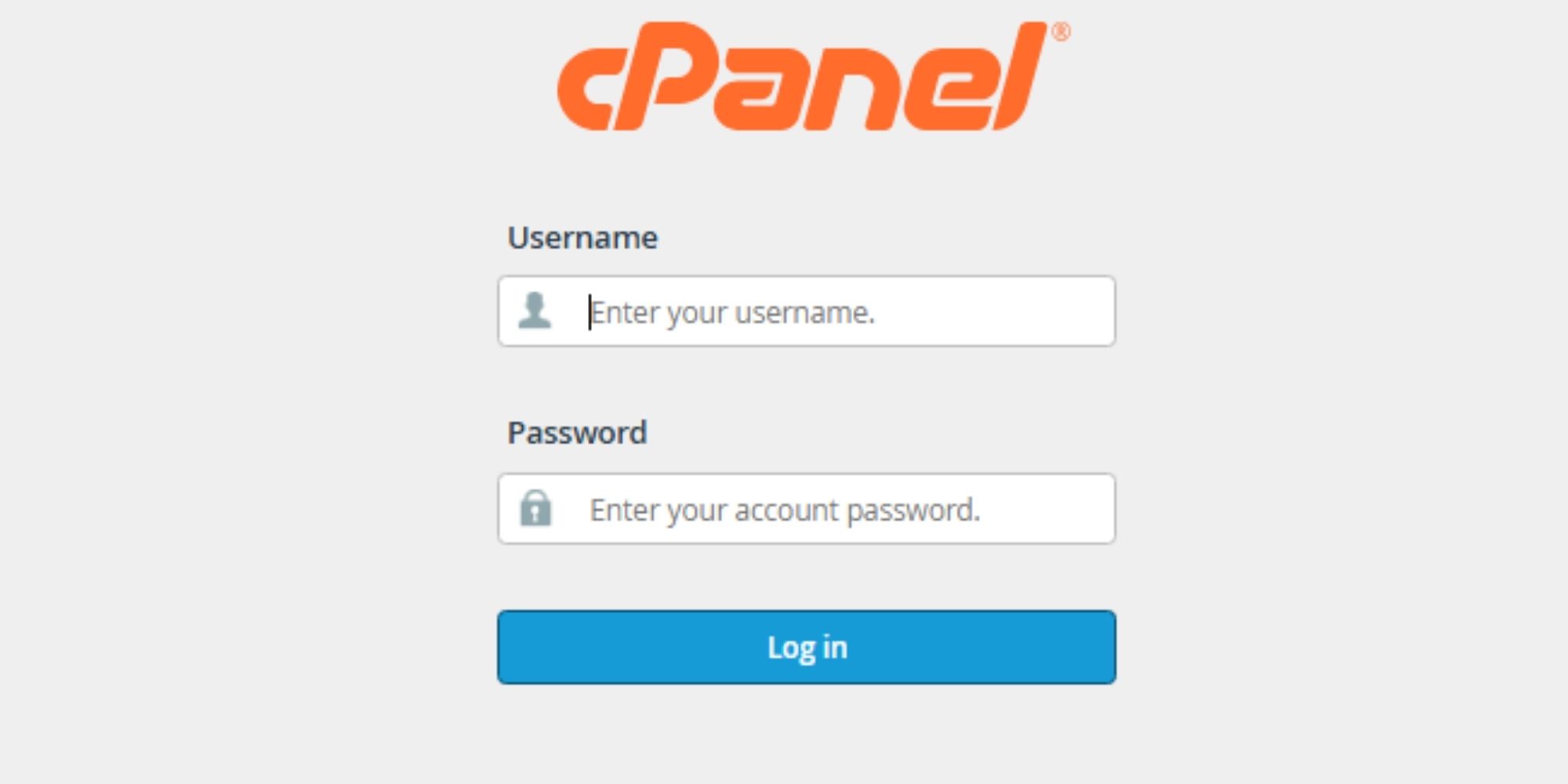
Step 1: Log in to cPanel
Login to your cPanel using the login details provided to you by PDHost
Enter:
-
Your cPanel username
-
Your password
Click Log In
Step 2: Open “Email Accounts”
Once inside cPanel:
-
Scroll down to the Email section
-
Click on Email Accounts
You will now see a list of all email addresses created on your domain.

Step 3: Click “Manage” Next to the Email Address
Find the email account you want to update.
Example:
On the right-hand side, click Manage.
Step 4: Enter a New Password
Under the Security section:
You can either:
-
Click Generate (recommended for strong passwords), or
-
Type your own secure password
⚠️ Important:
Use a strong password with:
-
Uppercase letters
-
Lowercase letters
-
Numbers
-
Symbols
Weak passwords are one of the main reasons email accounts get hacked.
Step 5: Click “Update Email Settings”
After entering the new password:
Scroll down and click Update Email Settings
Your password is now changed.
That’s it.
Important: Update Your Devices
If you access your email through:
-
Microsoft Outlook
-
Gmail
-
Your mobile phone’s Mail app
You MUST update the password there too.
Otherwise, your email will stop sending and receiving.
Go to your email app → Account Settings → Update password.
Common Issues After Changing Password
Email Not Working?
Most likely cause: old password still saved on your device.
Fix:
Remove the account and re-add it with the new password.
Getting Login Failed Errors?
Double-check:
-
Correct email address
-
No extra spaces
-
Caps lock off
When Should You Change Your Password?
-
If you suspect hacking
-
If emails are being sent without your knowledge
-
If you shared login details with someone
-
Every 3–6 months for security best practice
Final Advice
Don’t treat your business email casually.
If someone gains access, they can:
-
Reset social media accounts
-
Access client information
-
Damage your reputation
Security is not optional.
If you’d like, I can also create:
-
A version of this article with FAQs added
-
A combined “Email Setup & Management Guide” page
-
Or a downloadable PDF for your customers
Keep building practical content like this. It positions you as reliable, not just a hosting provider.


